
Profiles
The left menu provides a direct link to a list of available profiles or, if you are in a project, to the assigned profile. A profile defines, which data entry fields are shown in a project. There are profile templates and profiles belonging to the individual projects. Accordingly, the screen has two tabs, "Templates" and "Assigned".
Templates and assigned profiles
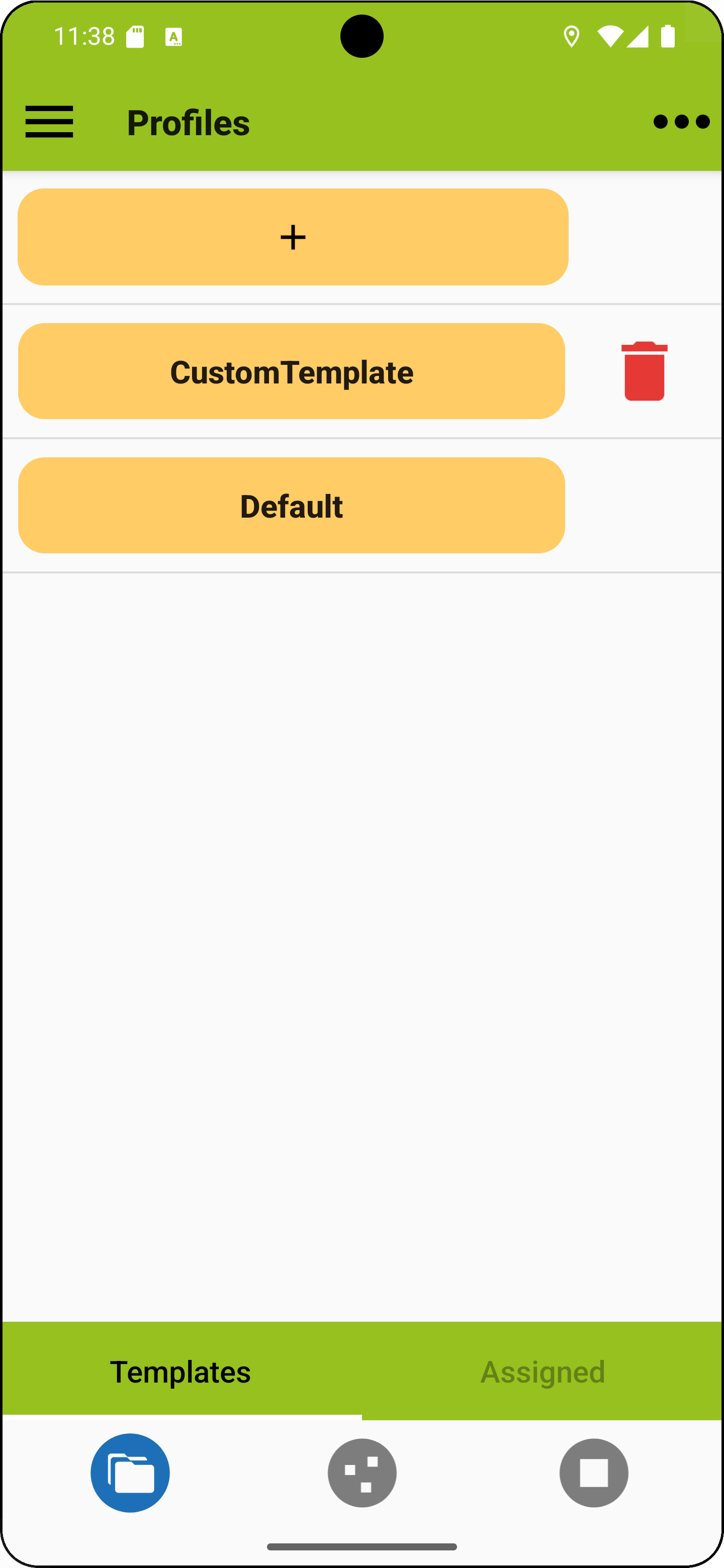
Template profiles are used for new projects. You can create a new profile by pressing the plus button. Its settings can then be modified as required. One template (called "Default") is always available. It cannot be deleted and can only be saved under a new name after changes have been made. Templates can also be derived from assigned profiles: when you save an assigned profile, you will be asked whether you want to overwrite the profile or save it as a template.
Assigned profiles are created when projects are created or imported. By default they have the same name as their associated project and can only be deleted together with that project. Changes to them affect which input fields are displayed in their respective project, but no existing data is lost when fields are disabled.
Profiles can be exported as ".vegp" XML files, using the menu (Profiles > Export, > Send). Templates can be imported from exported profiles (Profiles > Import). More details can be found in the data exchange section.
Editing profiles
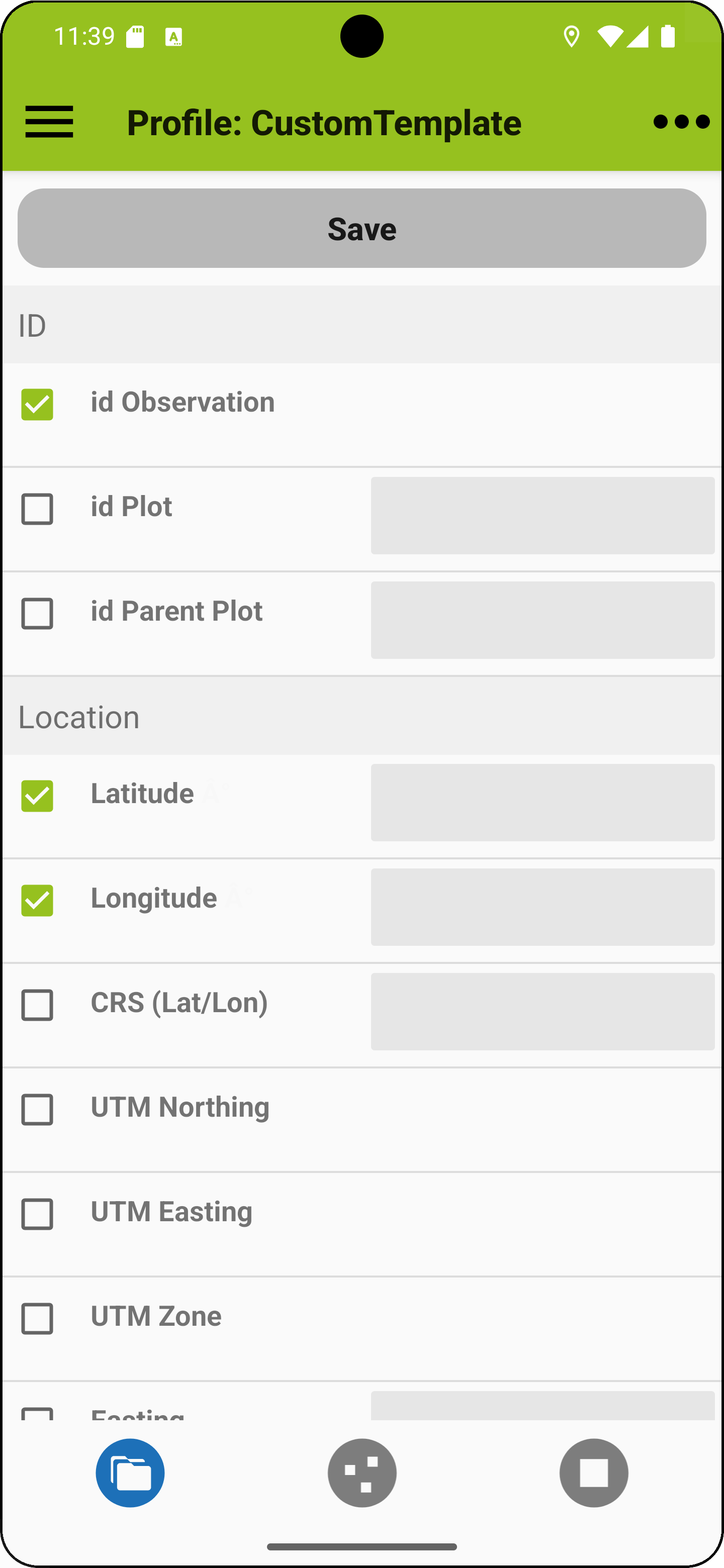
When editing a profile you can choose from a number of fields or define your own. Add or hide fields for data entry using the check boxes. If you have doubts about the meaning of these fields check out this description. You can also set defaults to avoid entering the same information, such as observer name or date, over and over again when entering plot data.
Custom fields
You can define your own fields for data entry (see the Custom fields section").
HOME UP
Privacy Policy, Contact, Impressum