
Location
The location can be set or retrieved for plots (from the plot attribut view) and for plant individuals (from the individuals view).
Plot location
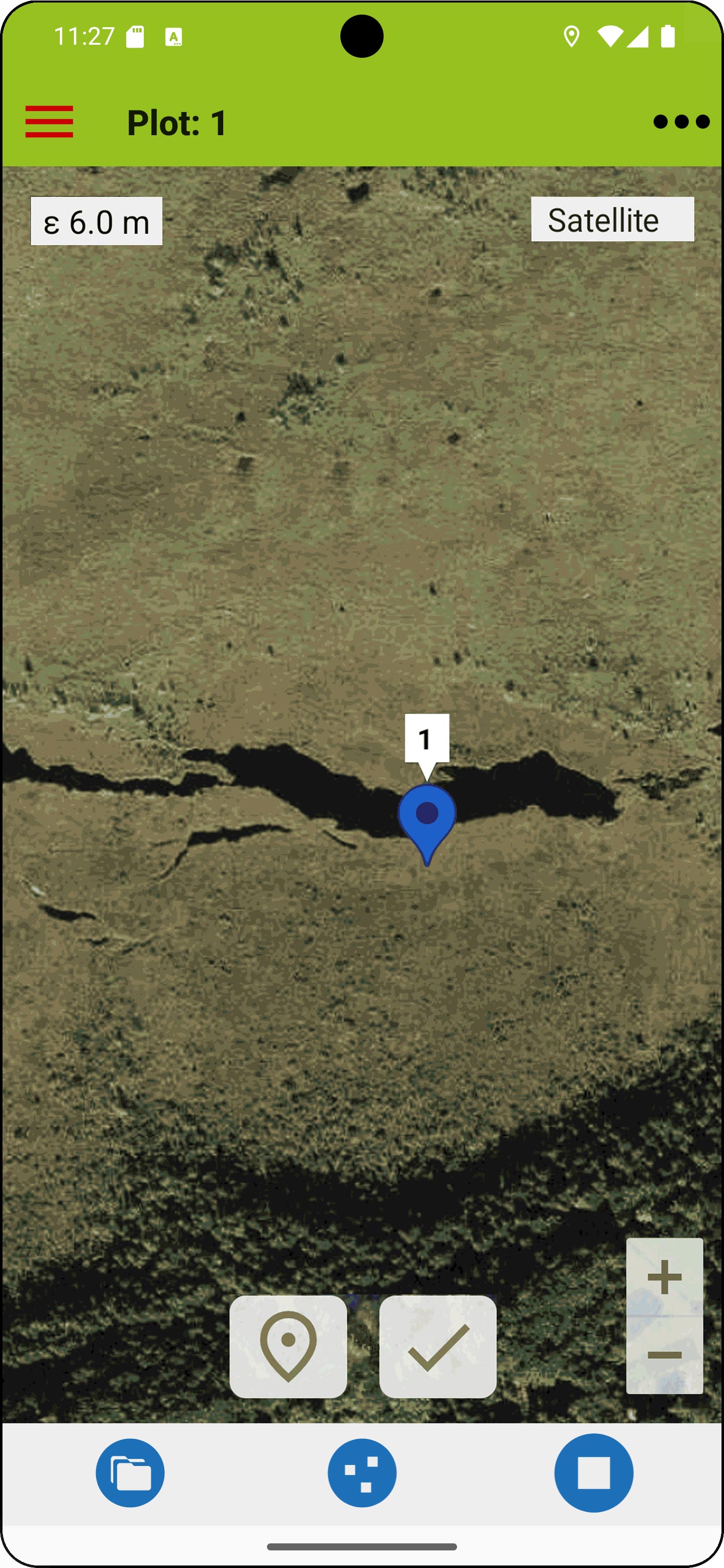
After tapping the position button in the plot attribute view, the map opens centred on:
- your current location, if there is none yet, or
- the plot location, if coordinates have already been entered
To view the map background you need an active internet connection or a cached map (the 'Maps for Mobile' help shows how to cache maps).
To use the current location if there is none yet:
- Tap on the marker button to make pink crosshairs appear
- Confirm by tapping the 'Confirm' button
- A dialog will appear showing the accuracy of the selected location, so you can decide whether to accept it or try again. The current accuracy estimate is always visible in the top-left corner of the map. The estimate turns green when the accuracy estimate has stabilised.
Using a manually selected location:
- Tap on a location on the map to make pink crosshairs appear.
- Confirm by tapping the 'Confirm' button
When you tap the globe icon next to a plot in the plot list, the map opens centred on that plot’s saved location. If no location has been set, the icon will be inactive and appear greyed out. Once on the map, you can set a new position for the plot using the above-described method.
Location of an individual plant
For individual plants, the current accuracy estimate is continuously displayed as on the map, turning green when the accuracy estimates stabilise. Here, the location button does not open the map. Instead, a dialogue box appears allowing the location to be confirmed and saved directly. Measured plant individuals are indicated on the map by cross-shaped markers.
More about location measurements in Vegapp
The app typically uses the device's GPS module for retrieving locations. If a more accurate position is needed consider attaching a multi-frequency GNSS receiver with RTK fix.
To conserve battery, Vegapp collects location data at a low frequency by default (once per minute). This tracking remains active while the app is in the foreground to avoid delays when precise measurements are needed. No measurements take place if the app is in the background. When the user navigates to the map or opens the location dialog for individual plants, Vegapp switches to high-frequency tracking mode (every second). This mode remains active as long as the map or the dialog are open.
HOME UP
Privacy Policy, Contact, Impressum