
Projects
Projects consist of one or more plot observations, i.e. sample sites with attached information.
Managing projects
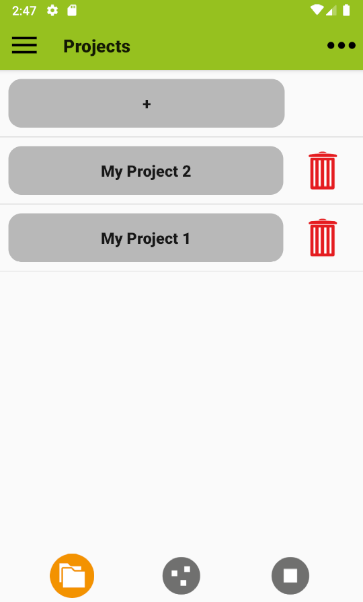
In the list of projects on the start screen, you can add projects using the plus button. You will be asked to enter a project name, a settings profile and a layer system. The profile determines which attributes are shown, the layer system defines how your site observation is organized in strata or layers. The profile and layer system are derived from templates, but are then project-specific. The selection of attributes in the profile can be changed later, as can the selection of layers in the selected layer system. However, the layer system as a whole cannot be changed later.
Project names can be edited by pressing and holding the respective grey button. You can delete a project from the list by tapping on the red trash can next to it. Importing, exporting and exchanging projects is done via the menu (Projects > Import, > Export, > Send). More details can be found in the data exchange section.
Adding plots to a project
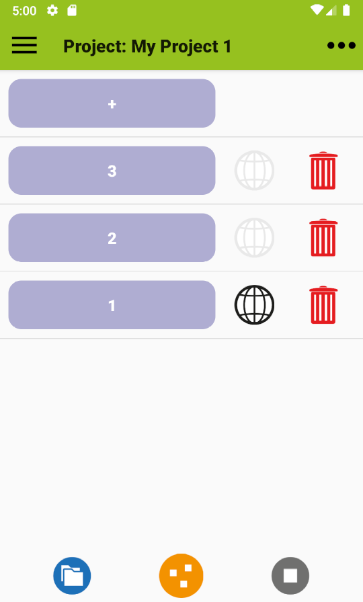
After opening the project, you see a list of plot observations or you can add some. Plot observations are added using the plus button and removed using the red trash can. Plot names are not edited in this list: To change a plot name you need to open a plot and edit the name there.
You can display a map of plot locations by tapping one of the marker icons. This should open a map showing plot locations. The marker icons in the plot list are greyed out if a plot has no coordinates (see more about locations here).
Data exchange, photos and customization of the input fields using a profile and layer system are all on a project basis. If you are in a project, these project settings can be accessed directly via the quick menu (upper left menu button).
HOME UP
Privacy Policy, Contact, Impressum